On this page
You were testing the contact form late at night. To get it working, you pasted the email service's API key straight into a script, just for a minute. It worked, you committed everything, pushed, and went to bed. The next morning you open the repository and there it is, in plain text, in a public commit.
Your stomach drops. You delete the line, commit again, and push. Problem solved?
Not quite. This post covers what to do right now, in the right order, and then how to set things up so the next key never leaves your laptop. Some of it is about git and GitHub in general; the last part is about the guardrails built into vagejs.
First: revoke or rotate the key. Today.
The single most important step has nothing to do with git. Go to the service that issued the key and revoke it, or rotate it (create a new key and switch the old one off). Do this before anything else, even before you tidy up the repository.
Here's why. Once a key has been pushed to a public repository, you have to assume someone else has seen it. Deleting it from your files doesn't change that. A revoked key is useless to anyone holding a copy, which makes every later step less urgent. GitHub's own guide, removing sensitive data from a repository, makes the same point: if the leaked data is a credential, revoking or rotating it comes first, and that alone may be enough.
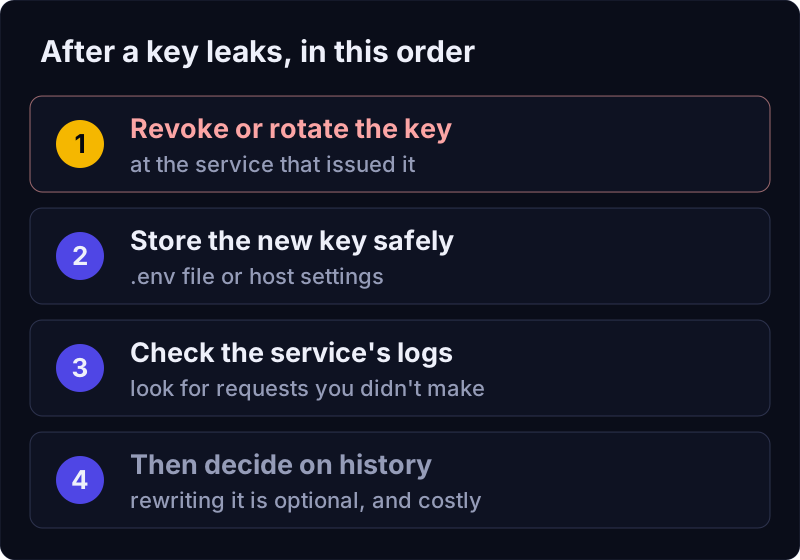
Then, in order:
- Put the new key somewhere safe. That means an environment variable on your computer, in your host's settings or in your CI service's secret store, not in a file you commit.
- Check the service's activity. Most API providers show usage or logs in their dashboard. Look for requests you didn't make between the push and the revoke. If it's a payment or cloud provider and you see anything odd, contact their support.
- Decide whether to clean the history. More on that below.
Why isn't deleting the file enough?
Git remembers everything. When you delete the line and commit again, the old commit is still there, and anyone can browse back to it. Clones other people made keep it too, and so do forks.
You can rewrite history to remove it, but GitHub's guide is honest that this has real costs. Every commit after the leak gets a new ID. Anyone with an old clone can push the secret right back in. Open pull requests can break. Copies that live in forks stay there, and some cached views on GitHub need GitHub Support to clear. The guide recommends a tool called git-filter-repo for the job and walks through each step.
That's exactly why rotating comes first. If the key no longer works, a copy in old history is harmless, and you can decide calmly whether rewriting is worth it. For many small sites it isn't.
Why do keys end up in commits?
It's almost never carelessness in the usual sense. It's the shape of the work:
- "Just for a minute." A key goes into a file to test something quickly, and the file gets committed along with everything else by
git add .. - An
.envfile that isn't ignored. Environment files are the right place for keys, but only if.gitignore(the list of files git should skip) includes them. - Static sites have a public folder. On many static sites, anything in the
public/folder is copied to the live website as-is. A config file dropped there isn't only in your repository; it's on the internet. - AI assistants copy what you paste. If you paste a key into a chat with a coding assistant to "make the form work", it may write that key into a file. It's doing what you asked.
GitHub also helps here. Its push protection feature can block a push that contains a recognised secret. According to GitHub's docs, the version for your personal account is on by default and stops you from pushing secrets to public repositories, while the version for whole repositories has to be switched on by an admin. It's a good safety net. A second net, closer to your own machine, does no harm.
How vagejs stops the next one
vagejs is a static site generator: it builds a website from Markdown files and publishes it for you. Because publishing goes through its own commands, it checks what's about to leave your computer before it leaves.
Keys have a proper home
New vagejs sites come with a .gitignore that already skips .env, .env.* (except .env.example), .dev.vars and .envrc. The site's AGENTS.md (the instructions every vagejs site gives AI assistants) says plainly: secrets go in .env or the shell, never in vage.config.ts or committed files. And API keys for vagejs's own reports, such as npx vage connect pagespeed, are saved outside the project folder entirely.
The publish commands refuse secret-looking files
npx vage deploy:github commits and pushes your site, and npx vage deploy does the same for GitHub Pages. Before either one commits anything, it scans the files that would be committed. It looks for file names that usually hold credentials (.env files, private keys, credentials.json, service account files and similar) and for text that matches well-known key formats, including GitHub tokens, AWS access keys, Google API keys, Stripe live keys, Slack tokens, and Anthropic and OpenAI-style API keys.
We tried it on a fresh starter site with vagejs 0.3.0 on 24 October 2026. We added a script containing a made-up GitHub token, plus an .env file, and replaced the starter's .gitignore with one that only skipped node_modules/ and dist/. Then we ran the dry run, which shows the plan without changing anything:
$ npx vage deploy:github --dry-run
Error: Refusing to commit possible secrets:
  .env: environment file
  scripts/send-form.js: looks like a GitHub token
Add them to .gitignore (and rotate any real credential that was exposed). False positive? Commit manually with git.
Nothing was committed, and the command exited with an error. Notice that it names the file and the reason, never the secret itself.
The build refuses secrets in public/
Everything in public/ gets published to the world, so vage build scans that folder on every build. We put the same made-up token into public/token.txt:
Error: Refusing to publish possible secrets from public/:
  public/token.txt: looks like a GitHub token
Everything in public/ is served to the world. Move these files out (and rotate exposed credentials).
Because every deploy target, including the Cloudflare ones, runs the build first, this guard applies however you publish. The build also refuses symlinks in public/, since a link can point at a file outside the project.
One deliberate exception: a Google API key in public/ is a warning, not an error. Some Google browser keys are designed to be public as long as they're restricted to your website's address, so vagejs tells you instead of blocking. If yours isn't restricted, treat it like any other leak.
More on how vagejs handles publishing is in the deployment docs and the security docs.
What the secret scan can't do
These guardrails are useful, but they're not a vault. Here's where they sit:
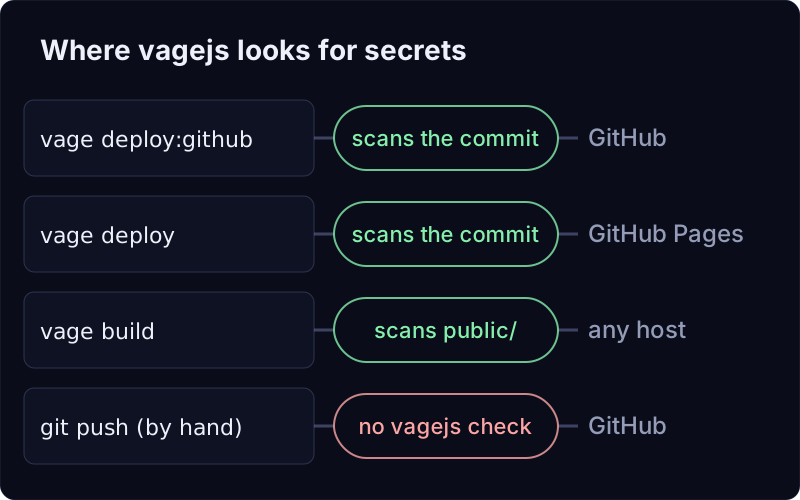
And here are the edges:
- It only sees what goes through vagejs. If you run
git add . && git pushyourself, vagejs isn't involved. GitHub's push protection may still catch it. - It doesn't scan your history. A key committed last month is still in last month's commit. vagejs checks what's about to be committed now.
- Patterns are hints, not proof. It recognises common key formats and file names. A key from a service with an unusual format can slip past, and now and then something harmless looks like a key. For a false positive, the message tells you the way out: commit that file with git yourself.
- It can't revoke anything for you. Only the service that issued a key can switch it off.
- A static site can't keep secrets in the browser. Anything a page needs at runtime is visible to visitors. If a feature needs a private key, it belongs on a server or a third-party service, not in your site's files.
Leaked API keys: what to remember
- If a key reached GitHub, revoke or rotate it first. A dead key in old history is harmless.
- Deleting the line doesn't remove it from history, clones or forks. Rewriting history is possible but has real costs; GitHub's guide explains them.
- Keys belong in
.envfiles that git ignores, or in your host's secret settings. - vagejs refuses to commit files that look like secrets when it publishes, and refuses to build if
public/contains one. - It can't see commits you make by hand, scan old history or revoke keys. Pair it with GitHub's push protection and good habits.
Run a secret scan before your next publish
You'll need Node.js 22.12 or newer:
npm create vagejs@latest my-site
cd my-site
npm install
npx vage deploy:github --dry-run
The dry run runs the check and the build and lists exactly what would be committed, without touching git. It's a good habit before every publish. The CLI reference has every option.