On this page
- Why do redesigns break links?
- Step 1: list your old addresses before you switch
- Step 2: catch broken links inside the site before launch
- Step 3: redirect the old addresses
- Step 4: know what kind of redirect your host gives you
- Step 5: check the live site after launch
- A real example: our own docs move
- What vagejs leaves to you in a redesign
- Redesign without 404s: the essentials
- Practise a rename on a test site
The new website is live. It looks fresh, it loads quickly, and everyone on the team is pleased. Then the emails start. A customer clicked the link in last month's newsletter and got "Page not found". A partner's site still links to your old pricing page. Someone scanned the QR code on a flyer you printed last year. Same result.
Nothing is wrong with the new pages. The problem is the old addresses, and they're scattered all over the internet where you can't edit them. Here's why that happens and how to stop it, step by step.
Why do redesigns break links?
Every page has an address (a URL), like /about-us.html or /services/plumbing/. Over the years, those addresses end up in places you don't control:
- search results,
- other websites that link to you,
- bookmarks in people's browsers,
- old emails, social posts and PDFs,
- printed material and QR codes.
A redesign often changes the addresses. New tools have different habits (/about-us.html becomes /about/), pages get merged or renamed, and sections move. Each old address that no longer leads anywhere becomes a 404 page for anyone who follows it.
There's also a second, sneakier kind of breakage: links inside your own site. A menu in your template, a "see our team" link buried in a blog post, a button on the home page. Rename one page and every one of those breaks at once.
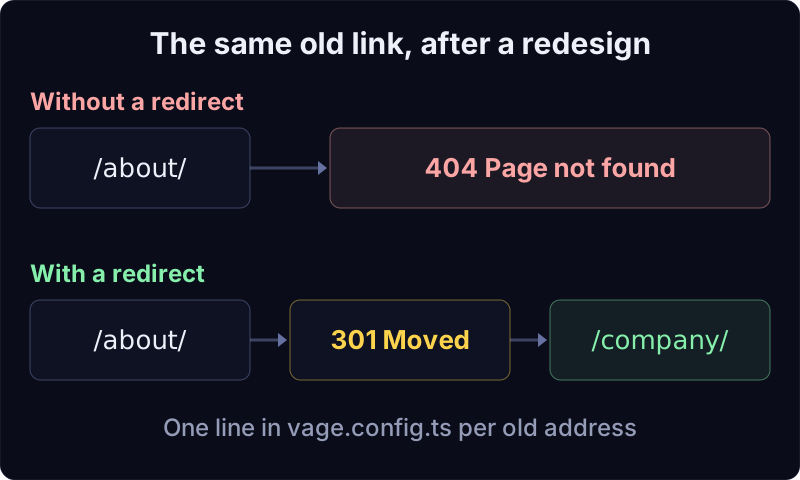
The fix for both is the same idea: know your old addresses, and send each one somewhere sensible with a redirect. A permanent redirect (HTTP status 301) tells browsers and search engines "this page has moved for good, here's the new address". Google's documentation recommends permanent server-side redirects whenever you can use them when a URL changes.
Step 1: list your old addresses before you switch
You can't redirect addresses you don't know about. Before the old site goes away, collect them:
- The old sitemap. Most sites have one at
/sitemap.xml. Save a copy; it's a list of every page the old site wanted search engines to know about. - Your analytics. The most-visited pages are the ones that matter most.
- Search Console. Google's own list of pages that get clicks from search.
If your new site is built with vagejs and you've connected Search Console (npx vage connect gsc), npx vage report search prints up to 25 of your top pages from the last 28 days, with their clicks. It's top rows only, so treat it as a list of the important pages rather than a complete inventory.
Step 2: catch broken links inside the site before launch
This is where a checker earns its keep. To show you what it looks like, we took a small vagejs bakery site, renamed about.md to company.md (so /about/ became /company/), and added a menu page that still links to /about/ and to an /hours/ page that was never written. Then we ran npx vage check. This is the real output from vagejs 0.3.0, run on 24 October 2026:
error   link-broken            / (src/pages/index.md)
        Link to "/about/" does not match any page or file.
error   link-broken            /blog/ (src/pages/blog/index.md)
        Link to "/about/" does not match any page or file.
error   link-broken            /blog/first-post/ (src/pages/blog/first-post.md)
        Link to "/about/" does not match any page or file.
error   link-broken            /company/ (src/pages/company.md)
        Link to "/about/" does not match any page or file.
error   link-broken            /menu/ (src/pages/menu.md)
        Link to "/about/" does not match any page or file.
error   link-broken            /menu/ (src/pages/menu.md)
        Link to "/about/" does not match any page or file.
error   link-broken            /menu/ (src/pages/menu.md)
        Link to "/hours/" does not match any page or file.
error   link-broken            /404/ (src/pages/404.md)
        Link to "/about/" does not match any page or file.

Checked 6 page(s): 8 error(s), 0 warning(s).
Passing checks do not guarantee indexing, rankings, rich results or AI citations.
Eight errors from one rename and one missing page. Most of them come from a single line: the site's main menu, which lives in the layout (the template around every page), still pointed at /about/. That's exactly the kind of link people forget to update, because it's not in any page you're editing.
Every error names the page, the source file and the broken address. Fixing them was two edits: the menu link in src/layouts/default.ts, and the menu page's text. Because these are errors, not warnings, every vagejs deploy refuses to go ahead until they're fixed. More in checks and audits.
Step 3: redirect the old addresses
Updating your own links fixes your site. Redirects fix everyone else's links. In vagejs, they live in one place, vage.config.ts:
redirects: {
  "/about/": "/company/",
},
Add one line per old address. The build lists each one alongside your pages (local path shortened):
  /                              -> index.html
  /blog/                         -> blog/index.html
  /blog/first-post/              -> blog/first-post/index.html
  /company/                      -> company/index.html
  /menu/                         -> menu/index.html
  /about/                        -> about/index.html (redirect to /company/)
                                 -> robots.txt
                                 -> sitemap.xml
                                 -> _redirects
                                 -> _headers
                                 -> llms.txt

Built 5 page(s) into ./dist in 323ms
Redirects can have typos too, and a redirect to a page that doesn't exist just moves the 404 somewhere else. So vage check tests every redirect target. When we first typed the target as /compnay/, it said:
error   redirect-target        vage.config.ts
        Redirect from "/about/" points to "/compnay/", which isn't a page or file on this site.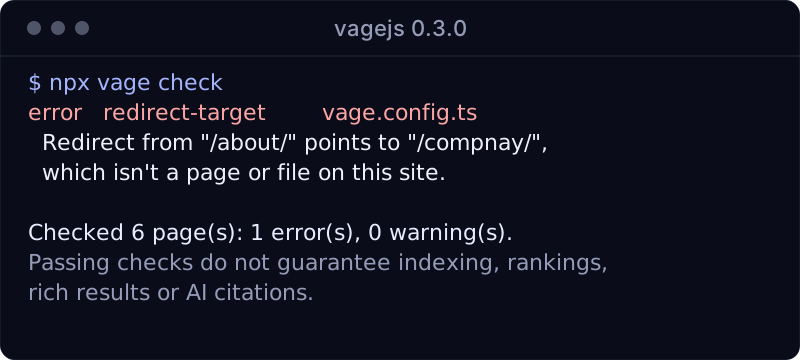
vagejs also stops the build if a redirect's old address is still a real page, so a redirect can't quietly hide a page you meant to keep.
Step 4: know what kind of redirect your host gives you
How a redirect behaves depends on where your site is hosted.
On Cloudflare (Workers or Pages), vagejs writes a _redirects file that Cloudflare reads, turning each entry into a real 301. It covers the address with and without the trailing slash. From our example build:
# Generated by vagejs from redirects in vage.config.ts
/about/ /company/ 301
/about /company/ 301
Cloudflare allows up to 2,000 of these rules, and vagejs tells you if you go over.
On other static hosts, such as GitHub Pages, there's no file like that to read. For those, vagejs also writes a small page at each old address that forwards visitors straight away. It's marked noindex, carries a canonical link to the new page, and shows a normal link in case the forward doesn't happen. Google's documentation says it treats instant forwards like this as permanent redirects, and calls them a reasonable alternative when server-side redirects aren't possible. A real 301 is still the cleaner choice where your host supports it.
While you work, npm run dev answers old addresses with a real 301, so you can click through your redirects locally. See routing for the details.
Step 5: check the live site after launch
Once the new site is live, npx vage verify fetches every page on the live site and compares it with your files. Any page that doesn't load (for example, one your host isn't serving) is reported as an error, alongside other differences between the live site and your repository. It's a quick way to confirm the launch went the way you planned. Deployment covers the full launch routine.
A real example: our own docs move
We did this on vagejs.com itself. When we reorganized the documentation in October 2026, three docs pages got new addresses, for example /docs/deploy/ became /docs/deployment/. Each one got a line in our redirects, and the site has four redirects in total. They took a minute to add, and nobody following an old link lands on a dead page.
What vagejs leaves to you in a redesign
- It doesn't know your old addresses. If the old site wasn't built with vagejs, you have to collect the list yourself (Step 1).
- It doesn't check links to other websites.
vage checktests links within your site. Links to other sites are checked against your approved list of domains, not for whether the page on the other end still exists. - Redirects are exact addresses. Each line maps one path to one target. There are no wildcard or pattern rules, so a big site with thousands of old URLs needs a long list (on Cloudflare, within that 2,000-rule limit).
- Moving a file doesn't add a redirect for you. Renaming a page is two steps: move the file, then add the redirect.
- Search engines take their time. Even with perfect 301s, it can take a while for search results to show the new addresses.
Redesign without 404s: the essentials
- Old addresses live in search results, other sites, emails and print. A redesign that changes them creates 404s you can't see from your own site.
- Collect old URLs from the old sitemap, analytics and Search Console before you switch.
vage checkfinds every broken internal link, including ones hidden in your layout, and every deploy stops until they're fixed.- Add redirects in
vage.config.ts. vagejs checks that each target exists, then writes real 301s on Cloudflare and forwarding pages on other hosts. - After launch,
vage verifyconfirms the live site serves every page.
Practise a rename on a test site
You need Node.js 22.12 or newer:
npm create vagejs@latest my-site
cd my-site
npm install
npm run check
Rename a page, run npm run check again, and watch it find every link you forgot. Then add a redirect and check once more. If an AI assistant is helping with your redesign, the project's AGENTS.md already tells it that renaming a page means adding a redirect; see our guides for AI agents.